Laavia POS · Local server

Offline restaurant POS that runs on your own server

Make one PC in your restaurant the main computer. Billing counters, captain phones and kitchen screens connect to it over your Wi-Fi or LAN, and every bill stays on your premises.

See how it works
  • No internet needed for service
  • Many counters, one server
  • Nightly backup on your PC
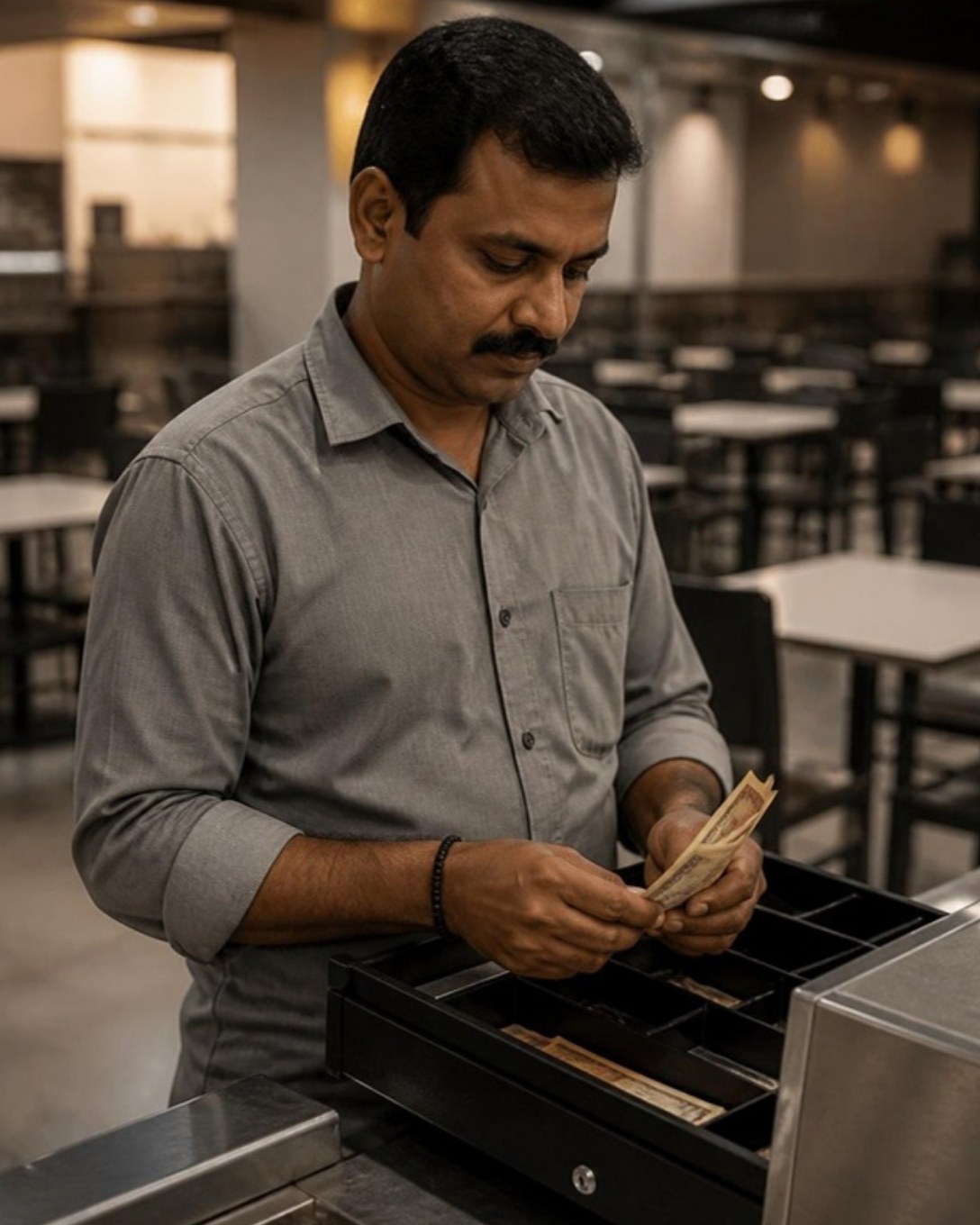
A cashier counting cash at a restaurant billing counter
How it works

How Laavia Offline POS works

One PC runs the Laavia server and database. Everything else in the restaurant connects to it over your own network. Only the licence check and updates go out to the internet.

Laavia CloudLicence check & updates onlyKOT #14Bill ₹1,240KOT #15Main computerLaavia serverDatabaseNightly backupBilling counter 1Windows PCBilling counter 2Windows PCCaptain appAndroid phoneKitchen displayKDS screenKOT printerLAN, in the kitchenBill printerUSB, at the counterLaavia CloudLicence check & updates onlyKOT #14Bill ₹1,240Main computerLaavia serverDatabaseNightly backupBilling counterWindows PCCaptain appAndroid phoneKitchen displayKDS screenPrintersBills and KOTs
The short answer

What is Laavia Offline POS?

Laavia Offline POS is the Local mode of Laavia POS. One Windows PC in your restaurant runs the Laavia server and database, and every other billing counter, captain phone and kitchen screen connects to it over your own network. Bills, customers and reports are stored on that PC, not on the internet.

Main computer
Windows 10 or 11, 64-bit, 4 GB RAM
Connects
Windows counters, Android captain and billing devices, kitchen screens, printers
Data
A database on your main computer, backed up nightly
Internet
To activate, then a licence check at least once every 30 days
Your data, your premises

Every bill stays inside your restaurant

Bills, customers, sales and staff records live in a database on your main computer. They are not uploaded to Laavia, and cloud sync never copies them.

  • A database on your own PC
  • Bills and customers never leave it
  • You decide who can open reports
Two restaurant owners standing at the entrance of their outlet
One server, many counters

Captains, counters and the kitchen on one network

Add Windows billing counters, captain phones and kitchen screens. Each one connects to the main computer over your Wi-Fi or LAN and sees the same tables, menu and orders.

  • Windows PCs and Android devices
  • No fixed limit on counters
  • A table opened on one counter shows on all
Waiter serving a family at a restaurant table
Internet down

The line goes down. Service doesn’t.

Every counter talks to the main computer in your restaurant, not to a server in another city. When the internet fails on a Saturday night, captains keep punching orders and the counter keeps printing bills.

  • Billing, KOTs and tables over your LAN
  • Reports keep working offline
  • A Wi-Fi blip on a counter loses nothing
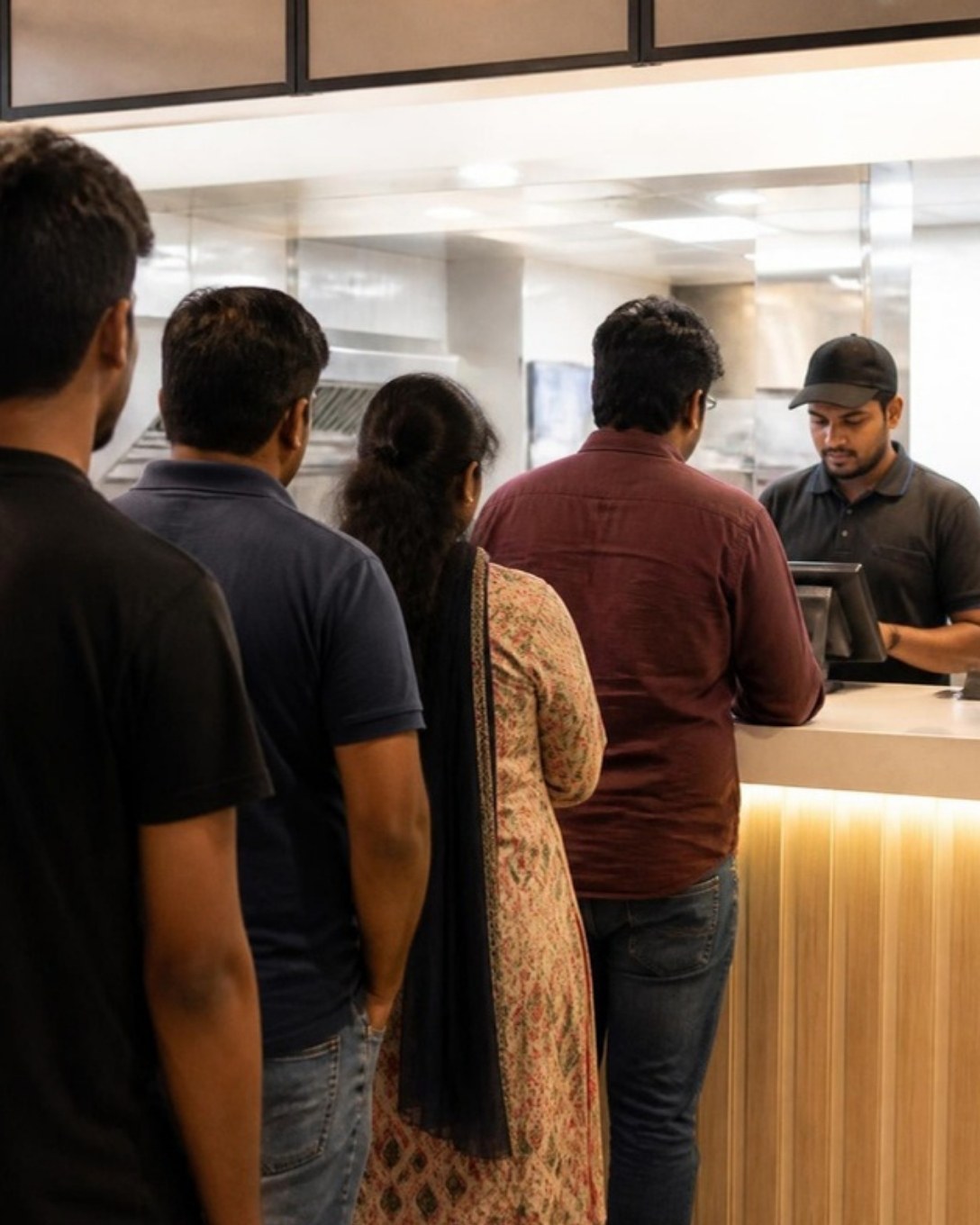
Customers queueing at a quick-service counter during a rush
Kitchen and printers

KOTs reach the kitchen in a second

Orders go from the captain’s phone to the main computer and straight on to the kitchen screen or KOT printer, all inside your building.

  • Kitchen display on any screen
  • LAN and USB thermal printers
  • Bills and KOTs by station
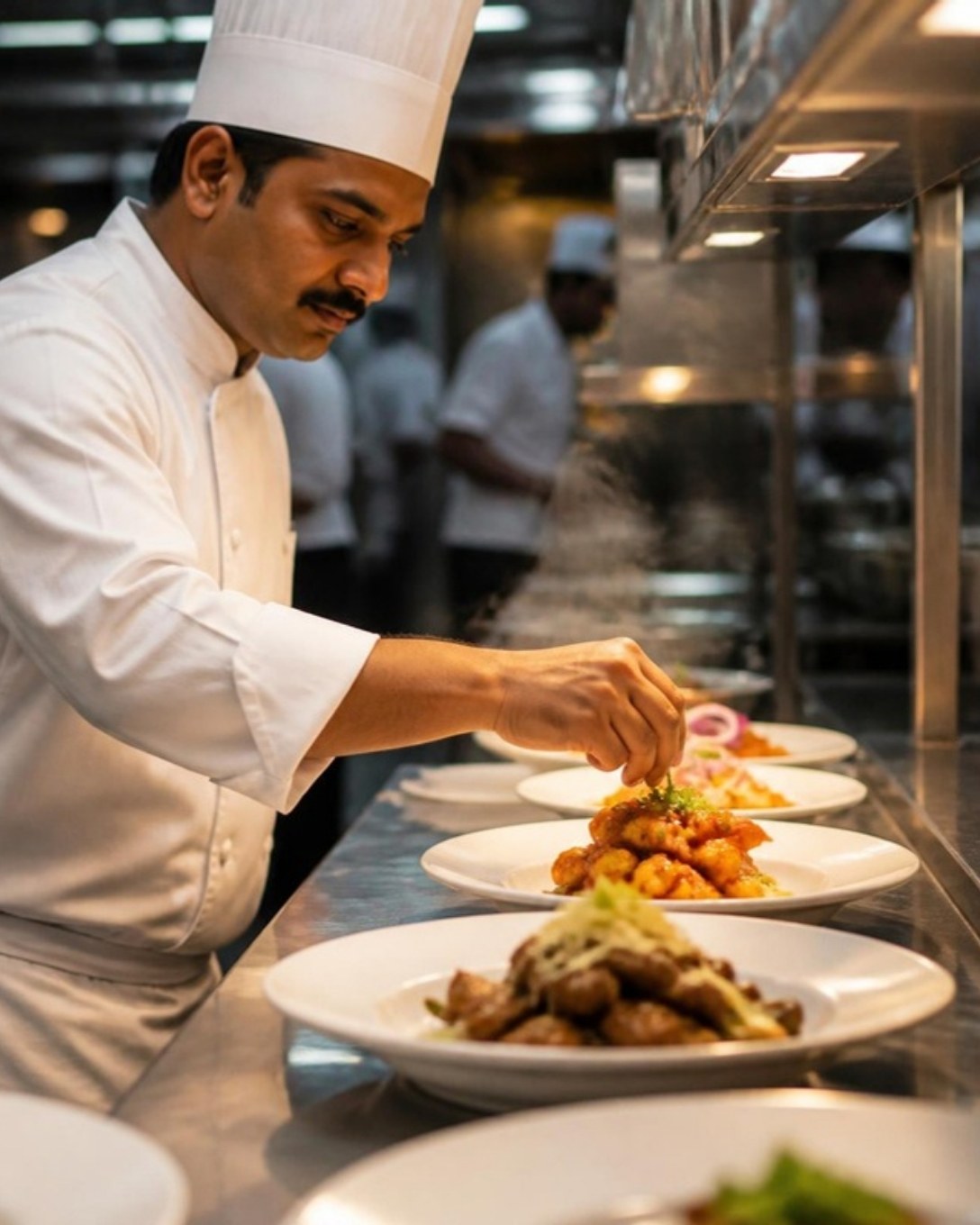
Chef plating dishes at the kitchen pass
  • Nightly backup on your PC

    A backup every night at 11:30 pm, with the last 14 days kept on the main computer.

  • Nothing lost on a Wi-Fi blip

    A counter that drops off the network holds new orders and payments and sends them when it is back.

  • Staff see only what they should

    Owner, manager, cashier, captain and kitchen roles, with rights you can change.

Where your data lives

What stays in the restaurant, and what uses the internet

Stays on your main computer

  • Bills, KOTs and payments
  • Customers, dues and loyalty
  • Menu, tables and floor plan
  • Sales, tax and staff reports
  • Staff logins and roles
  • Nightly backups (last 14 days)

Uses the internet

  • Activating the server the first time
  • A licence check at least once every 30 days
  • Downloading Laavia updates
  • Copying your menu and tables to the website, only when you press Sync

Bills and customer records are never part of the cloud sync.

Setup

Up and billing in four steps

  1. 01

    Install on the main computer

    Run the Laavia POS setup and choose “Local: main computer”. It installs the Laavia server and its database as Windows services that start with the PC.

  2. 02

    Activate and add your business

    Connect to the internet once to activate. Create your business with a sample menu, or bring your data from Laavia Cloud.

  3. 03

    Add your counters

    Run the same setup on each billing PC, choose “Local: additional counter” and type the main computer’s name. Android devices enter its address.

  4. 04

    Start billing

    Connect your printers, set up tables and give each staff member a login. Every counter now bills against the same data.

What you need

Main computer

  • Windows 10 (version 1809 or later) or Windows 11, 64-bit
  • At least 4 GB RAM
  • At least 2 GB free disk space
  • Stays switched on during service

Counters

  • Windows 10 or 11 (64-bit) PCs for billing
  • Android phones or tablets for captains and billing
  • A screen in the kitchen for the KDS

Network and printers

  • All devices on the same router, wired or Wi-Fi
  • Main computer’s Windows network set to Private
  • ESC/POS thermal printers over LAN or USB
Local or cloud

Offline POS or Laavia Cloud?

Both run the same Laavia POS. Pick Local when your data must stay on your premises; pick Cloud when you want reports, QR ordering and online orders from anywhere.

FeatureOffline (Local)Laavia Cloud
Where bills and customers are keptOn your main computerOn Laavia Cloud
Billing when the internet is downYes, over your local networkWindows app keeps billing and syncs later
DevicesWindows PCs and Android devices on your networkAny device with internet, including a browser
Sales reportsOn counters inside the restaurantAnywhere, in the browser or app
QR table ordering and online ordersNot in Local modeIncluded
Internet needed forActivation, a licence check every 30 days, updatesDay-to-day syncing

Questions about offline POS

Something we didn’t cover? Talk to us.

An offline POS keeps its data and does its work inside the restaurant instead of on an internet server. In Laavia POS this is called Local mode: one Windows PC becomes the main computer and runs the Laavia server and database, and the other billing counters, captain phones and kitchen screens connect to it over your Wi-Fi or LAN.

Not for service. Billing, KOTs, tables, the kitchen display and reports work over your local network. The main computer needs the internet once to activate and then at least once every 30 days to renew its licence, and it downloads Laavia updates when it is online. It reminds you a week before the 30 days run out.

There is no fixed counter limit in the software. Add as many Windows billing counters, Android captain or billing devices and kitchen screens as your network and main computer can comfortably handle. The number of outlets depends on your plan.

Counters bill through the main computer, so keep it on during service; setup offers to keep it awake while it is plugged in. If a counter loses the network for a moment, it holds new orders and payments and sends them when it reconnects.

Everything is stored in a PostgreSQL database on the main computer. A backup runs every night at 11:30 pm, or at the next start if the PC was off, and the last 14 days are kept on that PC. Copy the backups folder to a USB drive or another disk regularly as well.

In Local mode bills stay on the main computer, so reports open on the counters inside your restaurant. Cloud sync copies only your menu and tables to the website. If you want reports from anywhere, Laavia Cloud is the better fit.

Yes. In the Laavia dashboard open Data Management, choose Move to a local server and download the file. While setting up the main computer, choose to bring your data from Laavia Cloud and select that file.

ESC/POS thermal printers for bills and KOTs. Windows counters print to LAN printers and to any installed Windows printer, including USB printers. The Android app prints over LAN, Bluetooth or USB.

Keep your restaurant’s data in your restaurant

See Laavia Offline POS on your own menu in a free walkthrough, or compare plans and pricing.